
General
PokerChaser is a cloud-based app for poker players. To provide additional features and an improved user experience, a PokerChaser player account should be linked to the local CasinoWare account.
For new players added via QR code, this linking process happens automatically. For players who already exist in the CasinoWare database, their accounts should be linked manually.
The following sections explain both how to link existing players and how to create new players:
For users already familiar with CasinoWare, a short TL;DR version is available here.
Link a PokerChaser Player to CasinoWare
To link a PokerChaser player account with a local CasinoWare player account, first open the player list by navigating to Menu > Players > Show Players (Cmd + Option + p).
Now you need to search for the player you want to link. You can use the search field to look up a player by last name, first name, email, and more. You can quickly jump to the search field in the player list using the keyboard shortcut Cmd + Shift + f.
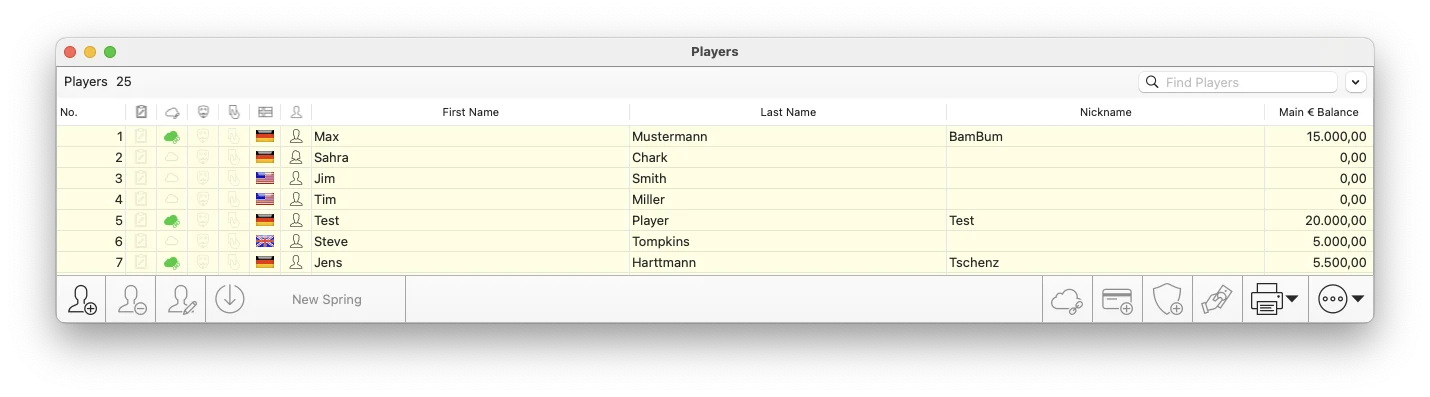
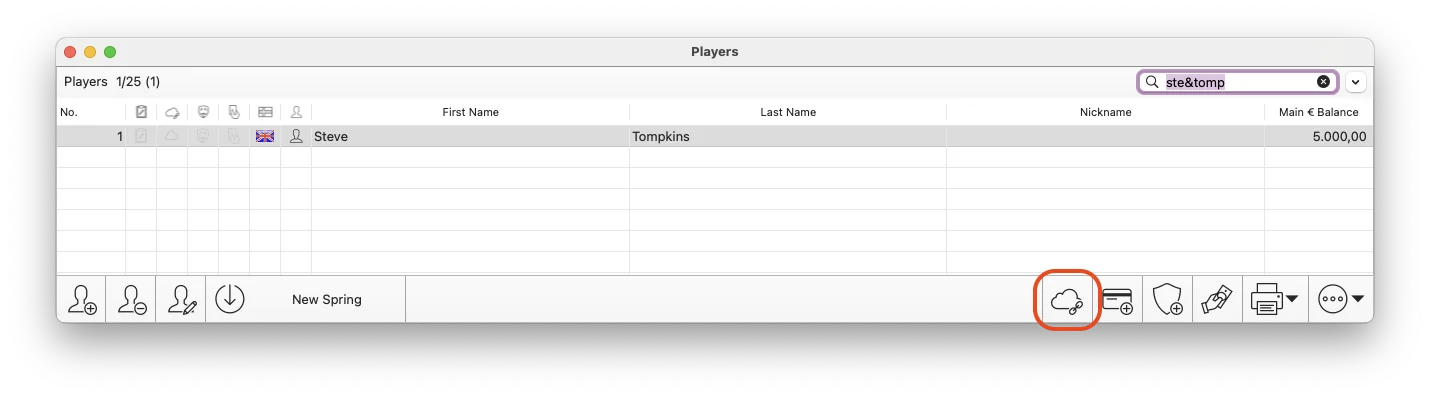
The player list includes a column with a cloud icon. A green cloud indicates that the player is linked. A red cloud indicates that the link is invalid and can be removed. In this case, the player may have deleted their PokerChaser account.
To link the selected player, choose the player row and click the cloud link icon in the bottom-right corner. A dialog will open where you can either scan the QR code or paste the data manually via copy & paste. The QR code contains all information the player has chosen to share from their PokerChaser account. The data is securely encrypted using strong AES encryption. The player data will be displayed in the dialog. On the right-hand side, you will find checkboxes that allow you to import the selected data into the CasinoWare account.
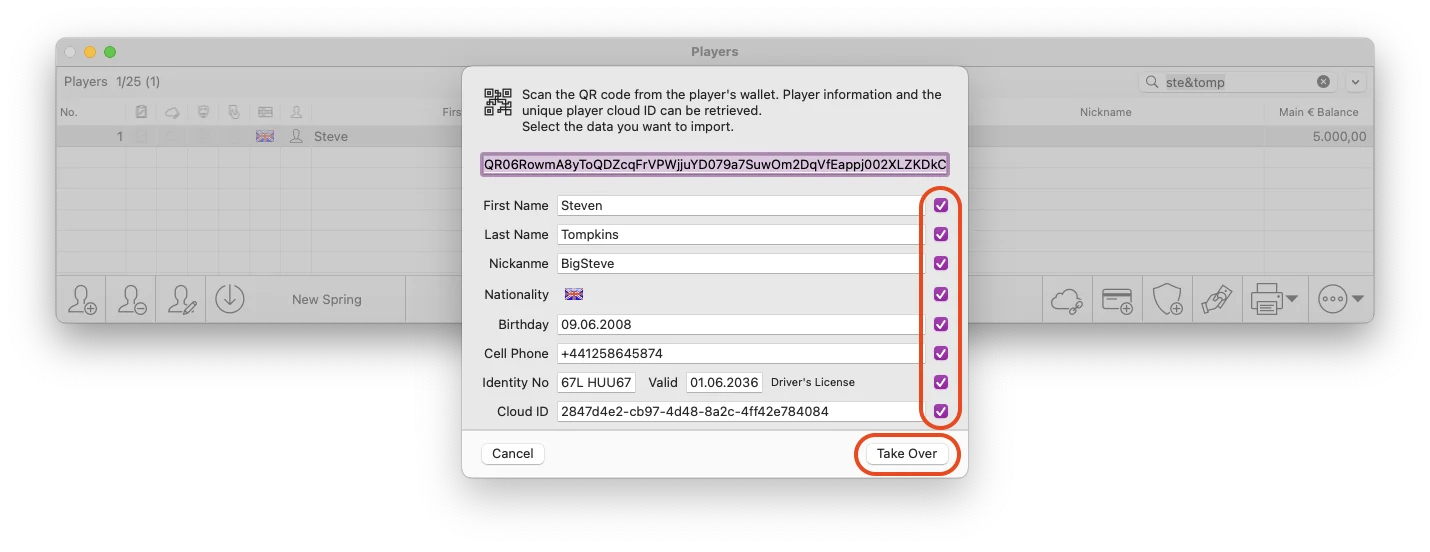
To import the selected data, simply click the Take Over button.
The Cloud ID field must be selected in order to link the player account to the PokerChaser account. Without the Cloud ID, only the data will be imported.
The cloud icon in the player list is shown in yellow while the connection is being verified with the cloud. Once the icon turns green, the connection has been successfully established.

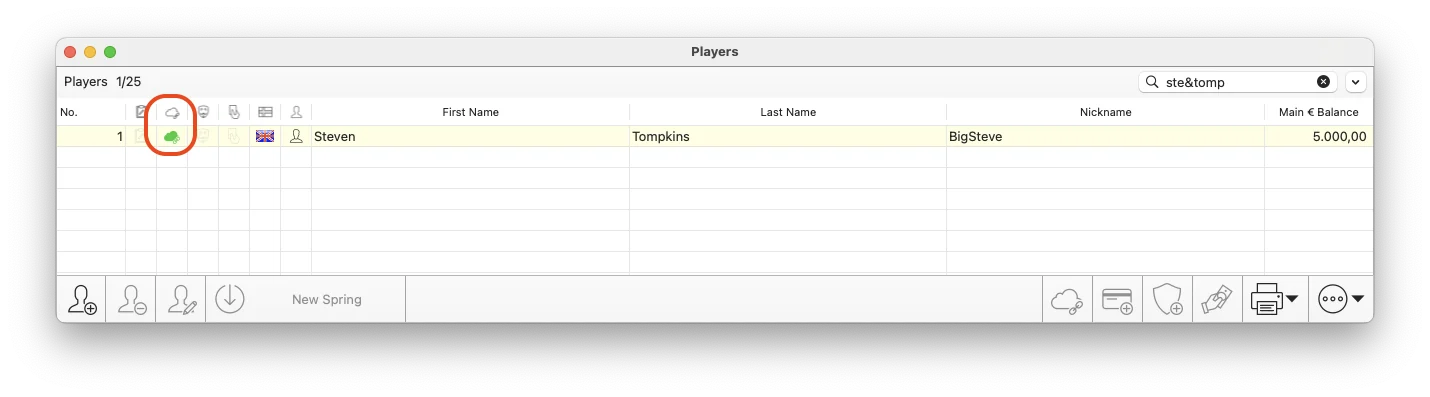
Once the player has been linked, they can immediately see the organizer in their PokerChaser wallet, the available features, and—most importantly—their account balances with exact amounts.
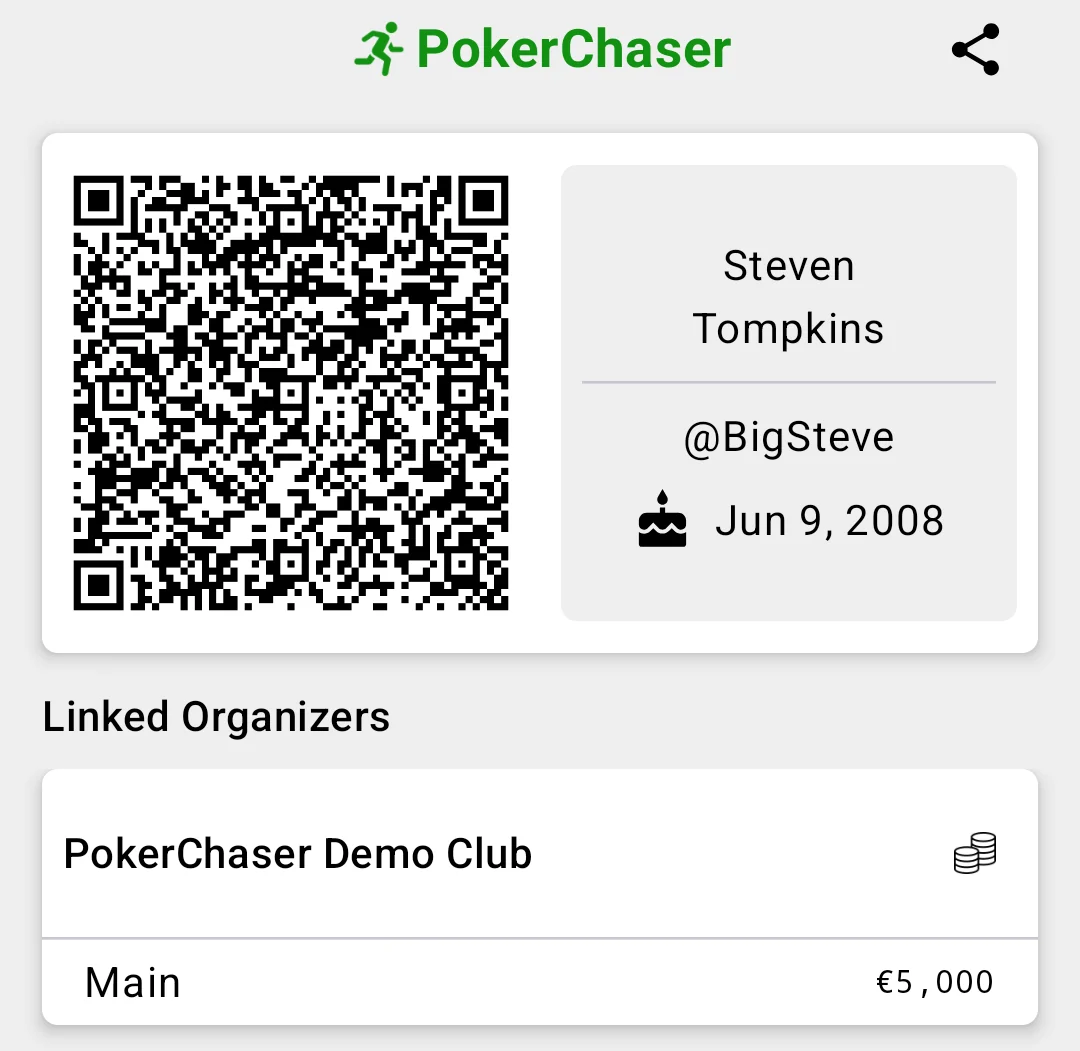
Wherever you see a cloud link icon, you can link the PokerChaser account to the local player. This is also possible in the player profile under the Cloud tab.
Individual player features can also be configured here. For example, you can disable the “Join the Waiting List” function for a specific player if they are not using it in line with the organizer’s rules.
Create a PokerChaser Player via QR Code in CasinoWare
To create a new player using the QR code and the PokerChaser app, open the New Player window to enter the player’s data. This can be done via Menu > Player > New, using the shortcut Cmd + n, or from the player list by clicking the plus button in the bottom-left corner.

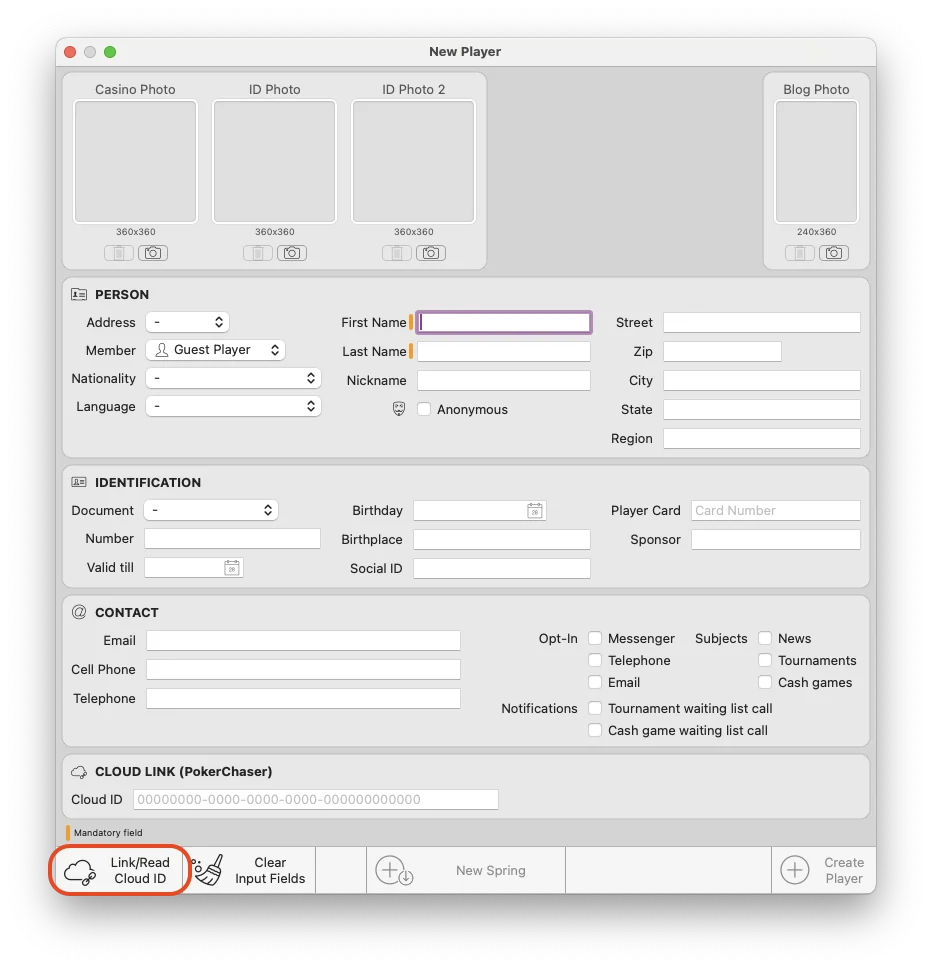
In the New Player window, you will also find the cloud link icon in the bottom-left corner. Clicking this button opens the same QR code dialog as in the linking process.
A dialog will open where you can either scan the QR code or paste the data manually via copy & paste.
The QR code contains all information the player has chosen to share from their PokerChaser account. The data is securely encrypted using strong AES encryption.
The player data will be displayed in the dialog. On the right-hand side, you will find checkboxes that allow you to import the selected data into the CasinoWare account.
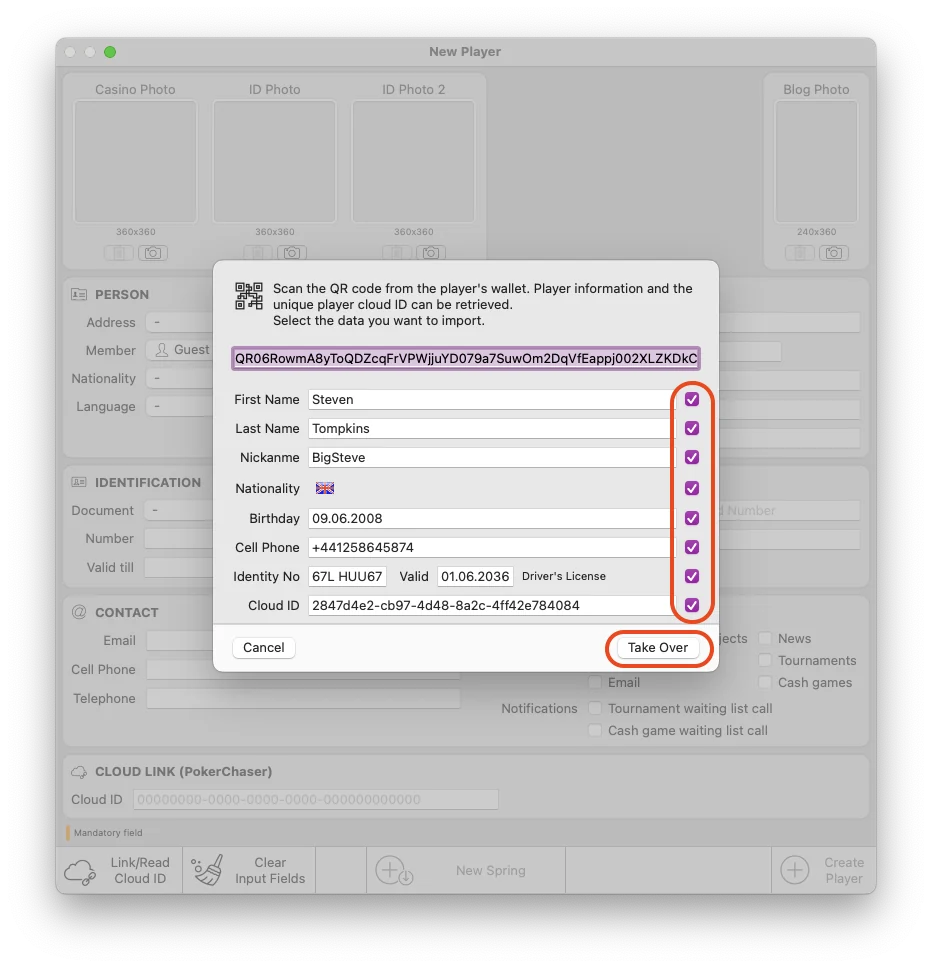
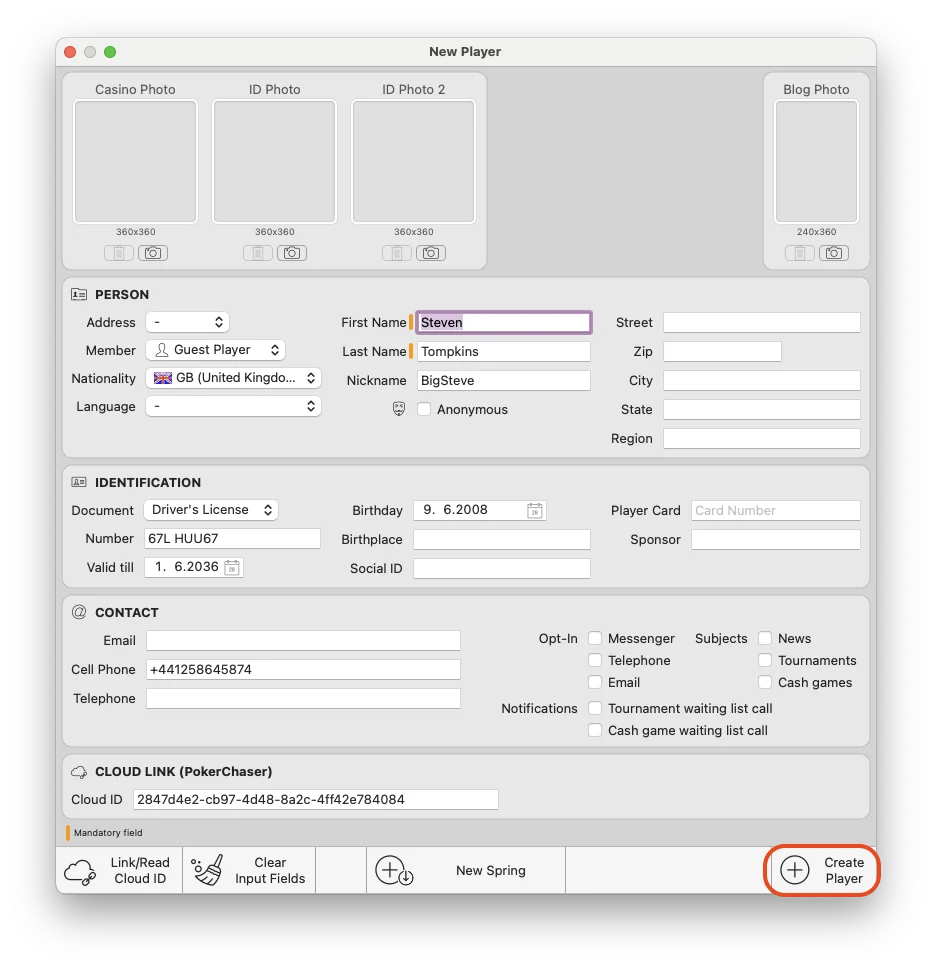
After clicking
Take Over
, the player data will be displayed in the New Player window. To finally create the player, click the
Create Player
button.
The Cloud ID field must be selected in order to link the player account to the PokerChaser account. Without the Cloud ID, only the data will be imported.
If the Cloud ID has been imported, the new player will automatically be linked to the PokerChaser account.
This is the recommended way to create or import new players with complete and accurate data, as the information is entered directly by the player, reducing the risk of errors or spelling mistakes.
The cloud icon in the player list is shown in yellow while the connection is being verified with the cloud. Once the icon turns green, the connection has been successfully established.
TL;DR 👀
Link existing PokerChaser player to CasinoWare
- Open Menu > Players > Show Players (Cmd + Option + p)
- Search and select the player
- Click the cloud link icon
- Scan or paste the QR code from the PokerChaser app
- Select Cloud ID and confirm with Take Over
- Verify that the cloud icon turns green
Add / Create new PokerChaser player
- Open Menu > Players > New (Cmd + n) or click the plus button in the player list
- Enter or import player data via QR code
- Click the cloud link icon in the New Player window
- Scan or paste the QR code from the PokerChaser app
- Click Take Over to import data
- Click Create Player
- If Cloud ID is included, the player is automatically linked
- Verify that the cloud icon turns green