
General
CasinoWare offers a mobile app for players, among many other features. Called PokerChaser, the app serves as an information resource, displaying all tournaments and cash games published by CasinoWare along with their venues.
Players can follow tournaments and cash games live, enhancing the player experience and increasing player engagement.
Configuration is done in three simple steps:
- Create a Cloud/PokerChaser account
- Configuring the cloud service in the CasinoWare Server application
- Configure the cloud features in the CasinoWare Tournament Floor application
For users already familiar with CasinoWare, a short TL;DR version is available here.
Create a Cloud/PokerChaser account
The Cloud/PokerChaser account cannot be created in the server application. To create an account, download the PokerChaser app from the App Store (iOS) or Google Play (Android). Install the app and create an account by following the on-screen instructions.


We recommend using a general email address for registration, such as "info@mycasino.com", so that in case of staff changes, an employee's personal email address is not used.
- In the app, tap Sign Up to create a new account
- Enter a valid email address and password
- Tap the I agree to the Privacy Policy button
- Tap Create Account

You will now receive a confirmation email. Please open the email and click on the confirmation link. If you complete this on your smartphone, you will be automatically redirected to the PokerChaser app login page.
After confirmation, you can log in on your smartphone to test whether the account has been verified.
Configuring the cloud service in CasinoWare Server
To configure the server cloud service, you need the email and password of the PokerChaser account.
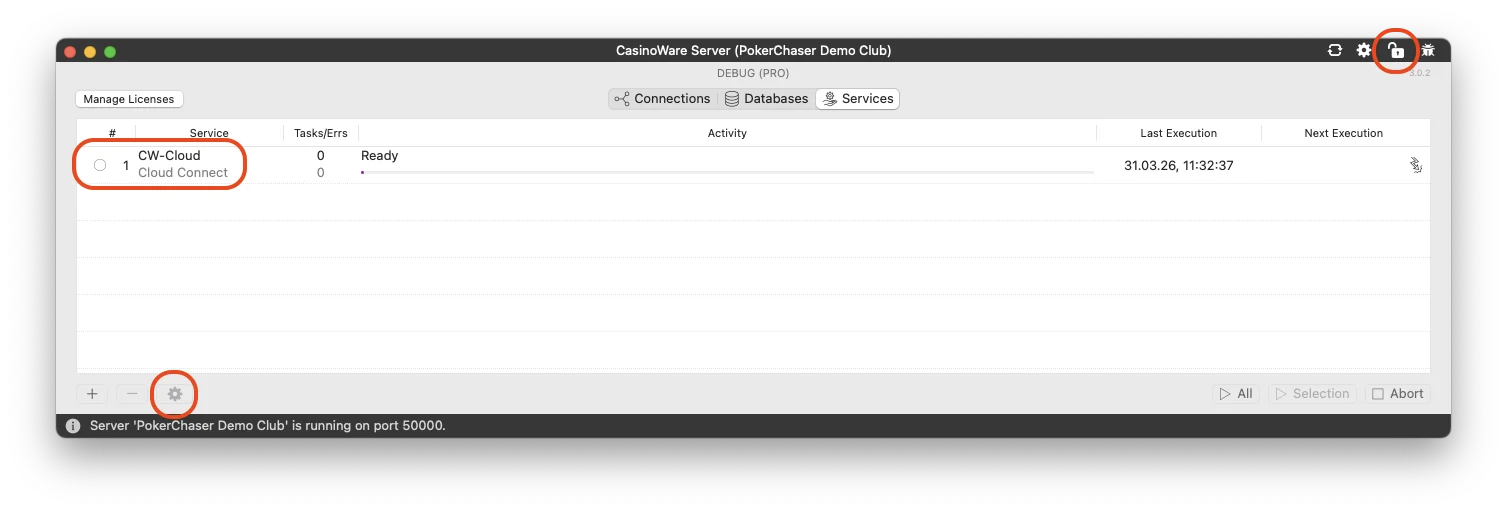
Open the CasinoWare Server application and select the Services tab in the window. If you have a license for the cloud service, the CW Cloud service should be listed in one of the rows. Select this row to configure the service.
Make sure the lock icon in the upper right corner is open. You can open it by clicking on it and then entering a root password if necessary.
Now select the row with the CW-Cloud service and click on the configuration button ⚙️ (gear icon) in the bottom left corner to open the configuration window.
Login Credentials
First, select the Login tab to enter your login details. Enter the email address and password from your PokerChaser registration.

Scheduler
Next, select the Scheduler tab. Here, you only need to check if the On value change event trigger is enabled. All other options must be disabled.

Service
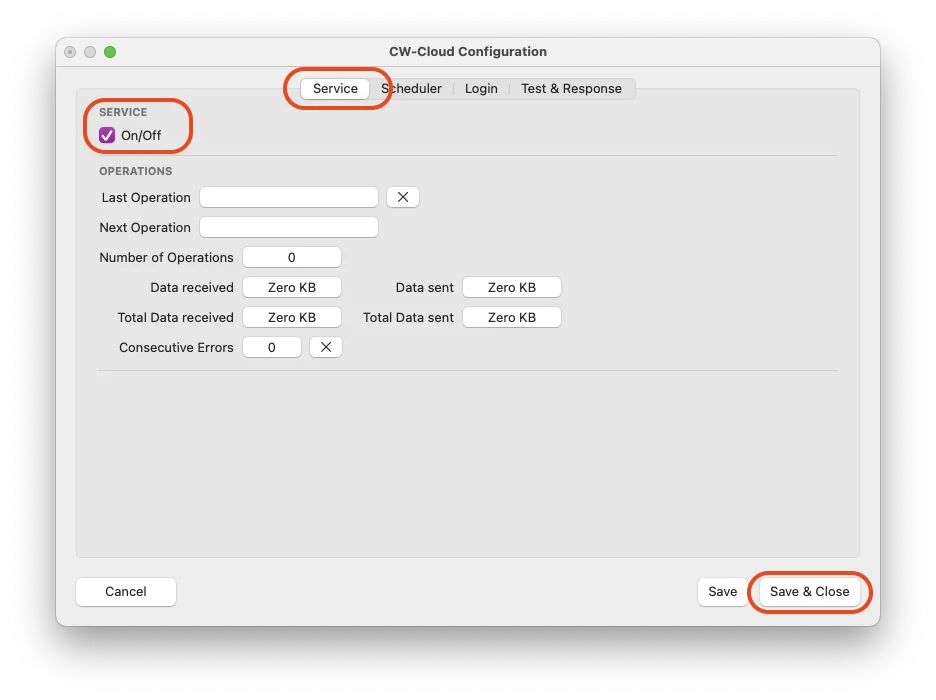
Finally, to complete the server configuration, you just need to activate the service. Switch to the Service tab and check the On/Off box.
Now simply click Save & Close.
That's it!
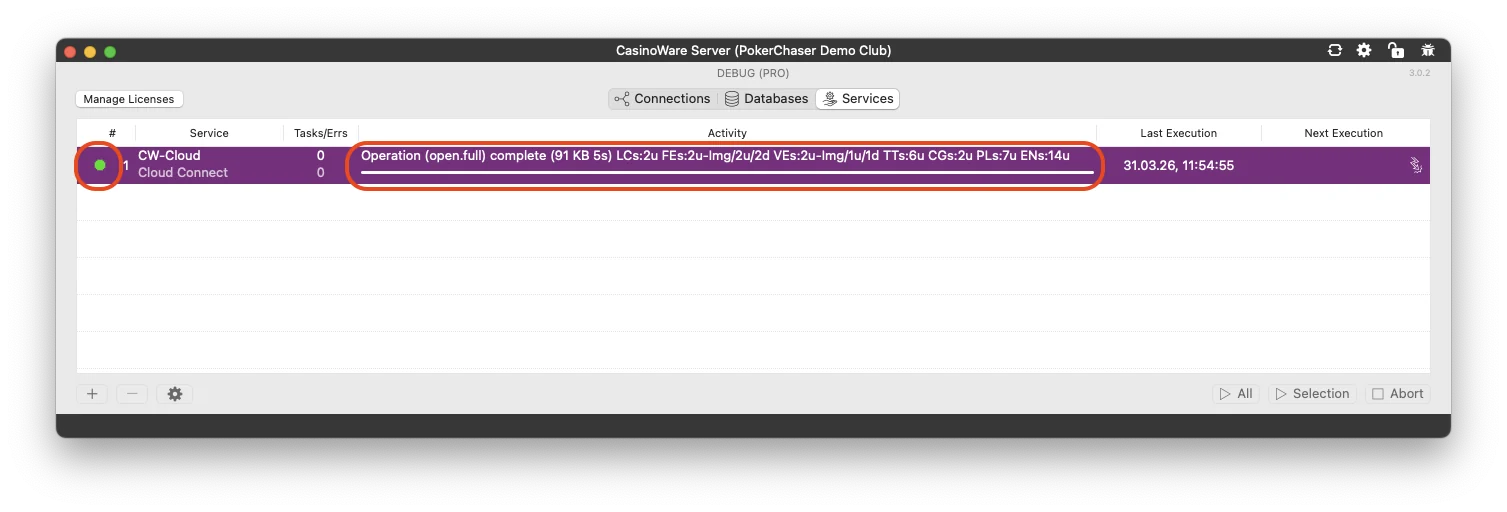
If the login details were correct, the first tournaments and venues will be uploaded immediately, and the dot in the CW Cloud row will turn green.
The Activity column should look similar to the one in the screenshot. Most importantly, the message "Operation (open.full) complete …" should be displayed.
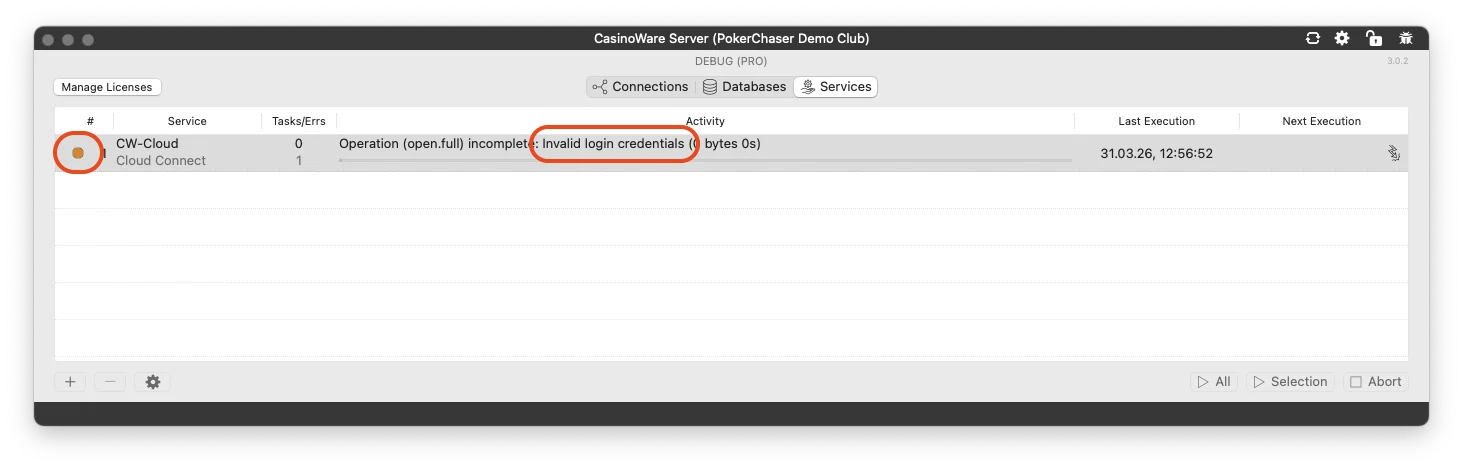
If an error occurs, the dot will turn orange and the Activity column will display "Operation (open.full) incomplete...". Please note the message that follows, which describes the error. The screenshot shows "Invalid login credentials" as an example. Please check your login details, such as email address and password.
Should you need to change the configuration, for example because the login details are incorrect, remember to click Close & Save so that the changes take effect.
Cloud features in CasinoWare Tournament Floor
Tournaments and cash games do not automatically appear in PokerChaser. There are a few conditions for this:
- A venue must be assigned
- The tournament or cash game must be published
Assign a Venue
To assign a venue, one may first need to be created; this must also be done if your event always takes place at the same location (e.g., casino or poker club).
With the Tournament Floor program open, select File → Venues from the menu to open the venues. Here you can create a new venue by clicking the ➕ (plus icon) button in the bottom left corner.

The window for new venues will now open.
For each venue, you must enter a name and a country. We recommend providing as much information as possible if you want it to be visible to players later in PokerChaser.
The latitude and longitude are especially important. Without them, your venues will not appear on the map.
Press Create Venue to add the new venue. The window will disappear and the venue will appear in the list.

Because CasinoWare is designed for poker tours and changing venues, you need to assign a location to each tournament or cash game. However, if you have a main location or are a stationary club, you can set a default location. To do this, click on the row in the list you want to set as the default and then click the checkmark button in the bottom left corner. The checkmark will now appear next to the default location.
For each venue, you must enter a name and a country. We recommend providing as much information as possible if you want it to be visible to players later in PokerChaser.
By selecting a default venue, all tournaments and cash games will automatically be assigned to that venue. Furthermore, all newly created tournaments and cash games will also automatically receive this venue.

In tournaments and cash games, you can find the venue in the Game section under Name & Games. Of course, you can change the venue at any time using the pop-up button.

Publish Tournament & Cash Game
To maintain control over publication, each tournament or cash game must be explicitly published. The Publish pop-up menu can be found in the Game section under Publication.
The following options are available:
- Off - The tournament or cash game will not be published
- Once - The tournament or cash game will be published once; that is, after completion, the Publish option will automatically be set to Off
- On Status Registrtion - The tournament or cash game will always be published when the status is Registration or higher; that is, the game will not be published while in the Initialization status
- Always - The tournament or cash game will always be public

If tournaments are recurring, e.g., every 14 days, it is recommended to set the interval to 14 days and the publish setting to Always. The tournament will then be automatically relisted and published again in 14 days after its conclusion.
TL;DR 👀
The Cloud / PokerChaser Service connects your CasinoWare server to the PokerChaser platform to publish your venue and events online.
Setup overview
- Create a PokerChaser account
- Open the PokerChaser app on your smartphone
- Sign up using your email and password
- Configure the Cloud Service in CasinoWare
- Open the CasinoWare Server application
- Navigate to Server → Services
- Add/select the CW-Cloud Service (requires license)
- Open the configuration via the ⚙️ (gear icon) in the bottom-left corner
- In the Login tab:
- Enter your PokerChaser credentials
- In the Service tab:
- Enable the service
- Create & assign a venue
- Open CasinoWare Tournament Floor
- Go to menu File → Venues
- Click the ➕ (plus icon) in the bottom-left corner to create a new venue
- Fill in all required fields
- Click Create Venue
- Set it as the default venue using the ✓ (check icon)
Configure publishing
Set up the section game settings for both tournaments and cash games:
- Select a venue
- Choose a publish option
Only tournaments and cash games with an assigned venue will be published to PokerChaser.