
General
Mixed games require the clock to display levels differently depending on how the game rotation is played. CasinoWare supports two different rotation formats, each with its own display mode.
Rotation by Level
In this format, each level is played as a different poker variant.
For example, in a HORSE tournament, Level 1 is played as Hold'em, Level 2 as Omaha Hi-Lo, Level 3 as Razz, and so on.
Since only one game variant is active at any given time, the clock only needs to display the current level together with the currently played variant.
Whenever the tournament advances to the next level, both the betting limits and the game variant change.
Rotation by Hand
In this format, the game variant changes after a predefined number of hands instead of at each level.
Because different tables may be playing different variants at the same time, the clock must display the levels for every game variant simultaneously.
When the tournament advances to the next level, the betting limits increase for all variants, while each table continues its own hand-based rotation.
The following sections explain both:
For users already familiar with CasinoWare, a short TL;DR version is available here.
Configuring Rotation by Level
First, open the Game section and select the appropriate game and betting structure.

For some mixed game formats, such as HORSE or TEROS, CasinoWare automatically expands the level structure with the required game variants.
If your mixed game is not listed, simply select MIXED. This generic option can be used for any custom mixed game format.

Make sure to select the correct Limit type as well.
Most mixed games use Spread Limit, as they combine different betting structures throughout the rotation. If your mixed game consists exclusively of Pot Limit or No Limit variants, be sure to select the appropriate limit type instead.

After switching to the Levels section, you'll see an empty level structure with additional columns specifically designed for mixed games.
In addition to the Limit 1 through Limit 9 columns, you'll also find the new Game and Limit columns.

When you add a new level by clicking the + button in the bottom-left corner, both the Game and Limit columns provide a selection which is the same like the one in the Game section.
Simply select the game variant and betting limit for that level.

The checkboxes next to the individual values in each column control the display.Only checked values will be shown on the clock for that level.
For additional values used by specific variants, such as Completion, one of the available Limit 1 through Limit 9 columns can be used. Simply enter the required value in one of the free limit columns.
It would be much clearer if the column was not named Limit 9, but instead displayed the actual value name, such as Completion. This is possible and makes creating the level structure much easier. In the lower-right corner of the Levels table, you will find a new button for mixed games that opens the Advanced Configuration.

The Advanced Configuration dialog contains two sections: Column Names and Display Items.

For this setup, we only need the Column Names section. Here, you can simply rename the column headers. In our example, we'll rename Limit 9 to Completion.
Click Set to apply the changes.

Most importantly, the new column name will also be displayed on the tournament clock.
This feature is also useful for shortening labels. For example, you can rename Small Blind to SB to save space and create a cleaner display.
This is how the tournament clock looks in our example after applying the changes.

For Rotation by Level, configure each level with its corresponding game variant and betting limits. Rename columns where necessary and use the checkboxes to display only the values relevant to that variant on the tournament clock.
HINT: Instead of creating long levels, you can create multiple short levels with the same blind structure but different game variants. This creates a dynamic rotation effect where the level duration controls how long each variant is active. Since hand durations can vary, a very short level duration may even result in a variant being skipped.
Configuring Rotation by Hand
For Rotation by Hand, all game variants must be displayed on the tournament clock at the same time, unlike Rotation by Level.
Instead of assigning one game variant to each level, every single level must contain the configuration for all variants.
The setup process starts the same way as for Rotation by Level.
First, open the Game section and select the appropriate game and betting structure.
For some mixed game formats, such as HORSE or TEROS, CasinoWare automatically expands the level structure with the required game variants.
If your mixed game is not listed, simply select MIXED. This generic option can be used for any custom mixed game format.

Make sure to select the correct Limit type as well.
Most mixed games use Spread Limit, as they combine different betting structures throughout the rotation. If your mixed game consists exclusively of Pot Limit or No Limit variants, be sure to select the appropriate limit type instead.
After switching to the Levels section, you'll see an empty level structure with additional columns specifically designed for mixed games.
In addition to the Limit 1 through Limit 9 columns, you'll also find the new Game and Limit columns.
When you add a new level by clicking the + button in the bottom-left corner, both the Game and Limit columns provide a selection which is the same like in the Game section.
The columns can be left empty, or you can enter MIXED and Spread Limit. These values are not used for the Rotation by Hand configuration.

For the HORSE format, different values are required depending on the game variant.
For Fixed Limit variants, you need to configure the Small Blind, Big Blind, 1st (Small) Limit, and 2nd (Big) Limit.
For Stud variants, additional values are required besides the limits: Ante, Bring-In, and Completion.
Which additional columns do we need?
The standard columns Small Blind, Big Blind, Bring-In, and Ante already exist, so we only need to add the following:
- Fix Limit 1st (Small) Limit
- Fix Limit 2nd (Big) Limit
- Stud Limit 1st (Small) Limit
- Stud Limit 2nd (Big) Limit
- Completion
If the limits are always the same for all variants, you only need one column for each limit value.
In this example, however, we use different limit values throughout the structure for both Stud and Fixed Limit variants.
The first step is to rename the additional columns so that each value always has its own dedicated column. It doesn't matter which Limit columns you use. In this example, we'll simply rename Limit 1 through Limit 5.
To do this, open the Advanced Configuration by clicking the button in the lower-right corner of the Levels table.
Stay in the Column Names section and enter the new names for Limit 1 through Limit 5. We'll cover the Display Items section in the next step.

Click Set to apply the new column names.
The new column headers are immediately displayed in the Levels table. Now configure every level by entering all required values for each game variant.
To make entering values easier, you can rearrange the columns in any order using drag and drop .
For this configuration, the checkboxes for the individual values are not required.

Now we move on to the Display Items section in the Advanced Configuration.
This feature allows you to create a custom text using placeholders. The generated text is then displayed in a dedicated object on the tournament clock.
Open the Advanced Configuration again and switch directly to the Display Items section.

The text entered here should describe the different game variants. Placeholders (Replacement Markers) can be inserted at the desired position simply by using drag and drop.
In our example, Limit 1 and Limit 2 represent the limits for Fixed Limit games, Limit 3 and Limit 4 represent the limits for Stud games, and Limit 5 displays the Completion value.
We have structured the display with a heading for each variant. The second line shows the blinds or the Ante, Bring-In, and Completion values, while the third line displays the limits.
For better readability, Small Blind is abbreviated as SB and Big Blind as BB. Choose the labels for each value carefully to keep the display clear and easy to understand.
Finally, click Set to apply the changes.
The standard tournament clock does not support Mixed Games Rotation by Hand, which means the display object is not included in the current tournament clock layout.
Customizing the Tournament Clock
To use this feature, we need to add the display object or create a dedicated tournament clock layout designed specifically for this type of tournament.
The goal is to customize the Tournament Clock for mixed games by using either a single display item (left image) or three separate display items (right image) to show the mixed blind rotation.
Depending on your preference, you can display the entire rotation in a single field or spread it across up to four individual fields, allowing each game variant to be shown separately.

Open the Display Designer by selecting File > Display Designer from the menu, or use the Cmd + J (⌘J) keyboard shortcut.
To create a new theme, click the + button in the lower-left corner of the General section.
To duplicate an existing theme, right-click the + button in the lower-left corner to open the context menu, then select Duplicate.
Choose a meaningful name for the new theme, then switch to the Views section where we will customize the clock.

In the Views section, select the Running Clock view directly from the Views list in the upper-left corner.

In this example, we will first delete all other Blind and Next Blind objects located in the center area of the Running Clock view.
To do this, search for the objects in the left column. These are all objects that are already placed on the Running Clock view.
If you enter "blind|next" in the search field, it will find all objects containing either blind or next. The vertical bar (|) represents an OR condition.

Now we can delete the six selected objects. Please note that, in this example, the top object displays the time until the next break. We do not want to delete this object.
Use the Delete key or the - button in the lower-left corner to remove the selected objects.
To add a Mixed Blinds object to the Tournament Clock, search the list of available objects on the right by entering "mix" in the search field. At the moment, there is only one matching object.
Select the object, then click the + button in the lower-left corner. The object will be added to the center of the view.

The text displayed in the fields within the Display Designer is sample data for preview purposes only. It is not linked to any configured tournament. The number shown in parentheses indicates the corresponding item number.
Now move the object to its desired position and adjust its size. Once it is in place, you can configure the label and the font sizes to match your design.
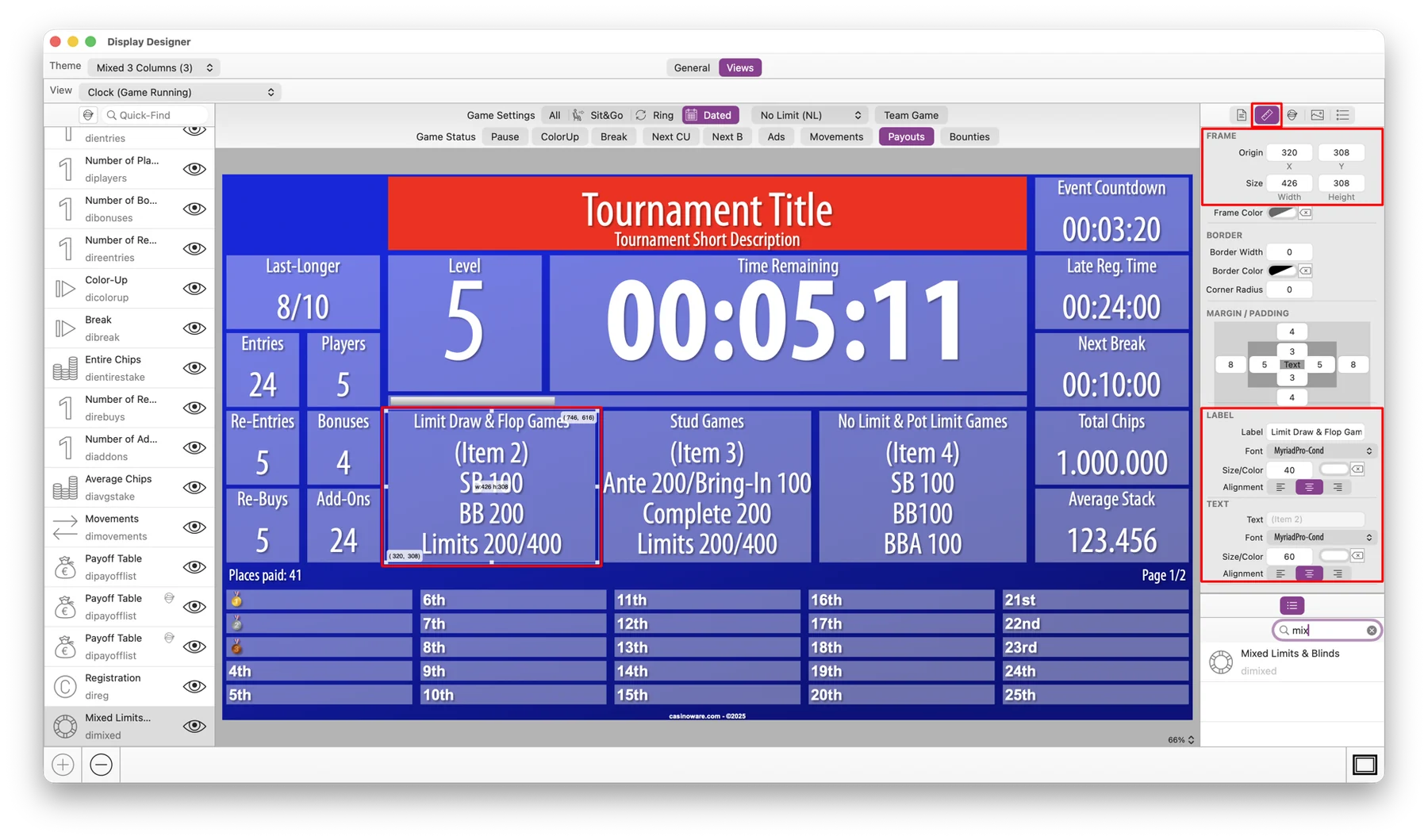
Most importantly, under Object Options in the upper-right corner, select the correct Item Text from the Advanced Level Configuration. In this example, Item 2 is selected because it represents the leftmost item in the mixed blind rotation. This ensures that the correct information is displayed below the label "Limit Draw & Flop Games".
Enable the Compact Values (1K) option to display numbers in a more compact format. For example, 1,400,000 will be displayed as 1.4M .

There is one small issue remaining. When the tournament enters a Color-Up or Break level, this information is not yet displayed in the correct position. Instead, it appears in the area reserved for the mixed game information, and it may also be partially obscured by the mixed game objects.
To adjust the size and position, enter "color|break" in the search field on the left and select both objects (Color-Up and Break) at the same time.
In the Object Inspector on the right, adjust the Y position and Height values. In this example, both values are set to 308.

Finally, the new objects need to be hidden when the tournament enters a Color-Up or Break state.
To do this, select all three Mixed objects and open the Hide section in the Object Inspector. Under Current State, enable the Color-Up and Break options.

This tutorial does not cover all possibilities of the Display Designer or all available options for each object.
We recommend testing the Mixed Games theme beforehand and verifying that all values are displayed correctly and in the right position. Especially when the blind values become large, it may be necessary to adjust the font size to ensure everything fits properly.
TL;DR 👀
Setting up Mixed Games on your Tournament Clock requires two main steps: configuring the tournament levels and creating the matching display layout.
After the level configuration is complete, use the Display Designer to customize how the Mixed Game information is displayed. You can choose between showing all information in a single Mixed Blinds object or using multiple objects to display individual game variants separately.
The basic workflow:
- Configure the Mixed Game rotation using Rotation by Hand in the Advanced Level Configuration.
- Create or duplicate a theme for your Mixed Games layout.
- Replace the standard Blind and Next Blind objects with Mixed Blinds objects.
- Assign the correct Item Text values to each object.
- Adjust position, size, labels, and font settings to match your design.
- Configure Hide options so Mixed Game objects are hidden during Color-Up and Break levels.
- Test the theme with different blind levels and rotations to ensure all information is displayed correctly.
The Display Designer provides many additional customization options. We recommend testing your Mixed Games setup before using it in a live tournament, especially with higher blind values where font sizes may need adjustment.